Windows11 Terminal
I bought a mini PC called MINISFORUM and became a Windows 11 user, and I noticed the existence of Windows Terminal, which is very useful. I used to use WinKey + r + app name or Wikey + r + cmd to use the command line. Maybe it's because I was originally an MS-DOS user (:-o). The days seem like a long time ago when MS-DOS would first start up and then I would type win to start up Windows before Windows 3.1 (:-). However, as for MicroSoft, it may be that they are still drawn to the compatibility with MS-DOS (:-s). I don't know the details of whether Windows Terminal was added only with Windows 11, or whether it existed before, but I guess Windows finally decided to get rid of the fossil-like cmd application.
However, the settings for using the terminal are in a strange place, so I feel that it is still undergoing a fearful change.
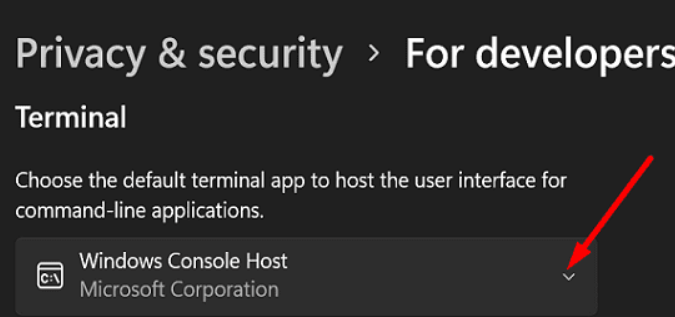
In Windows Settings ⇒ Privacy and Security ⇒ For Developers, I found a setting for Terminal. It seems that if you set it here, you can use the terminal instead of the console (cmd).
The good thing about the terminal is that you can use a number of windows in tabs, and above all, you can copy and paste by CTRL+c and CTRL+v after selecting a range as usual. Of course, the previously executed command can be selected with the up/down cursor keys (this may have been possible before). In the days when there was no terminal, many people used Teraterm to access Linux and other applications, but I think this is sufficient if you have a terminal (jsut personal opinion, lol). From now on, in Windows 11, you can use WinKey + r followed by
ssh [Cloud Computer Name]
ssh [Cloud Computer Name]to connect to the Cloud Computer. That is wonderful , simple and rapid operation with the function of copy & paste!